Export Manager
Prepare Collections MAX accounts for a buyer without writing database queries. Choose accounts, share a free masked preview, and pay when you release real data.
Selling a portfolio usually means database queries, spreadsheet clean-up, and careful work to hide personal data before a buyer sees it. Then the buyer picks some accounts, and you build another file by hand.
Export Manager brings selection, review, and file creation into one screen. It connects to your Collections MAX data, lets you choose accounts with plain-language rules, shows totals and breakdowns, and creates a masked preview file for free. When the buyer returns the accounts they want, you release the real data for those accounts only.
- Choose accounts without SQL. Use menus and rules instead of writing database queries.
- Free to build and share. Masked exports cost nothing. You pay only when you release real data.
- Share a preview with fewer details. Six columns stay visible, including first name, balance, state, and dates. Other filled cells show
MASKED. - Release only what sells. Upload the buyer's list of IDs and release just those accounts.
- No DC IT hosting or reporting subscription required. Export Manager works on its own for any eligible Collections MAX company.
Request access, or read on for the workflow, controls, pricing, and limits.
All screenshots use synthetic data from the My Organization demo company. Some show separate examples, so their account counts differ.
How it works
- Choose accountsPick accounts by portfolio, client, status, state, balance, date, and more.
- Refine the batchLeave out unwanted accounts, skip earlier exports, and cap the count or dollar total.
- Review the portfolioCheck totals, averages, data coverage, and six breakdowns before you save.
- Save a masked exportCreate a buyer preview for free. Six columns remain visible; other filled cells are masked.
- Share and checkDownload Excel or CSV for the buyer. Check what changed in your data since.
- Release and deliverUpload the buyer's IDs, pay the release charge, and download the real file.
You operate Export Manager. Your buyer does not need a portal account. They review the spreadsheet and send back the IDs they want.
For example, you prepare a 1,000-account sample from one portfolio in the Southeast. The buyer chooses 250. You release those 250 accounts, pay one $75 release charge, and deliver the file. This example shows the workflow; it is not a promise of buyer demand.
The Export Manager screen
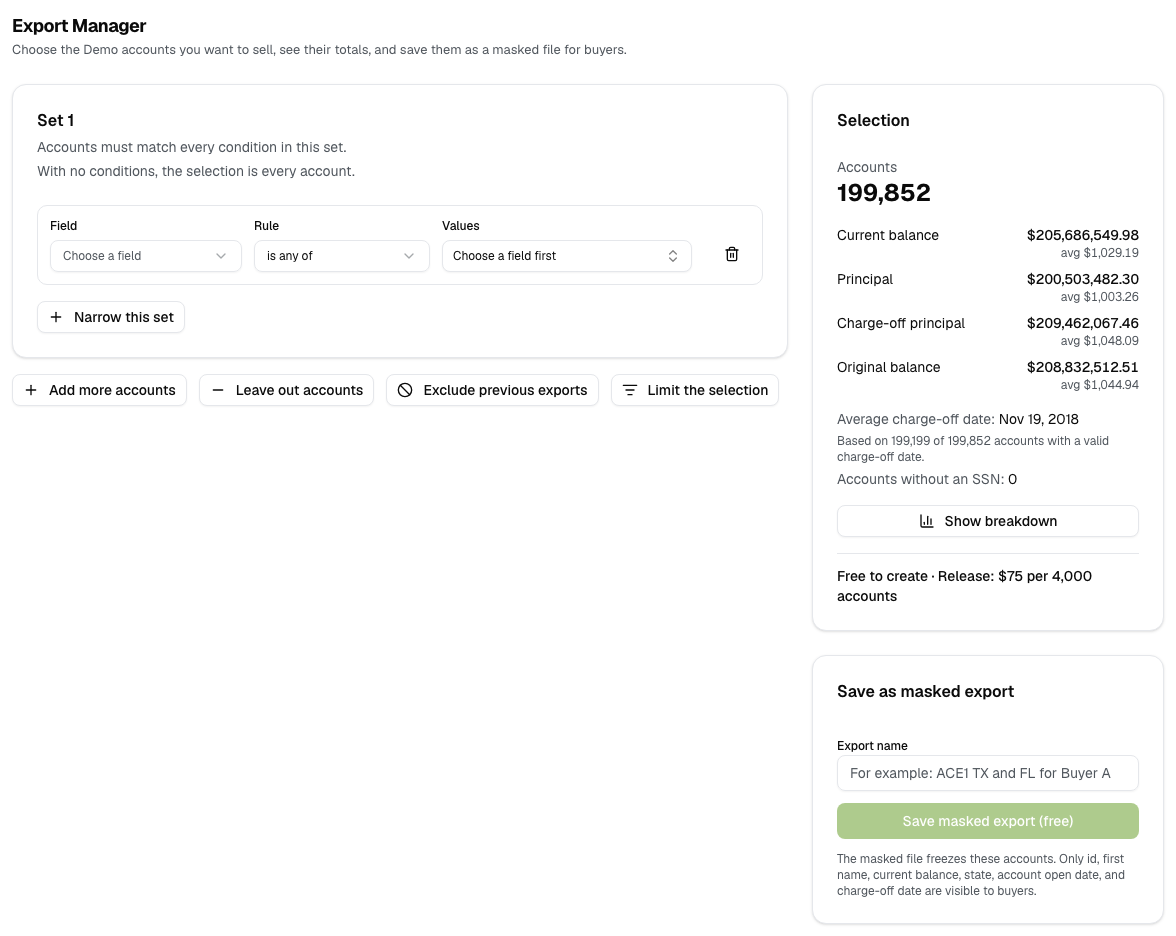
Everything happens on one page in the DC IT portal. You build the selection on the left. The Selection card on the right updates the totals as you work. Below it, you name and save the export. Saved exports appear in a list underneath.
1. Choose accounts
A set is a group of requirements. Each requirement, called a condition, has a Field, a Rule, and one or more values. An account must match every condition in a set.
- In Set 1, open Field and choose what to filter on.
- Choose a Rule, such as is any of.
- Choose or enter the values.
- Select Narrow this set to add another requirement.
- Watch the Selection card update with the new totals.
Fields you can use
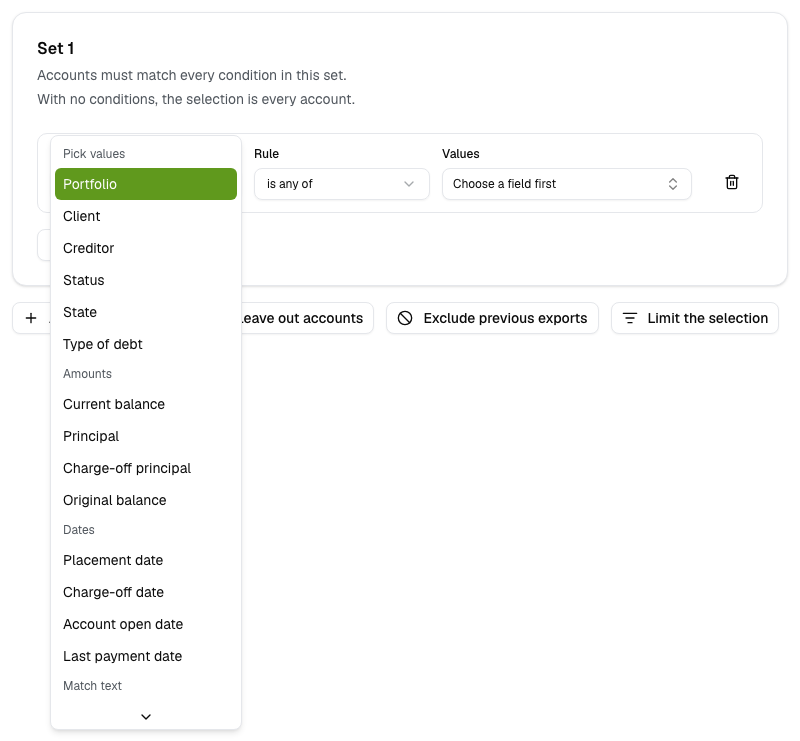
| Type | Fields | Rules |
|---|---|---|
| Pick values | Portfolio, Client, Creditor, Status, State, Type of debt | is any of, is none of |
| Amounts | Current balance, Principal, Charge-off principal, Original balance | is between, is at least, is at most |
| Dates | Placement date, Charge-off date, Account open date, Last payment date | is between, is before, is after |
| Match text | Creditor text, City text | contains, starts with, does not contain, does not start with |
| Any column | Any of the 102 export columns | has a value, is empty |
Pick values from your own data
For value fields, the picker lists the values that exist in your database, with the number of accounts for each. You can search the list and select several values at once. Selecting NC and SC in one condition means "NC or SC".
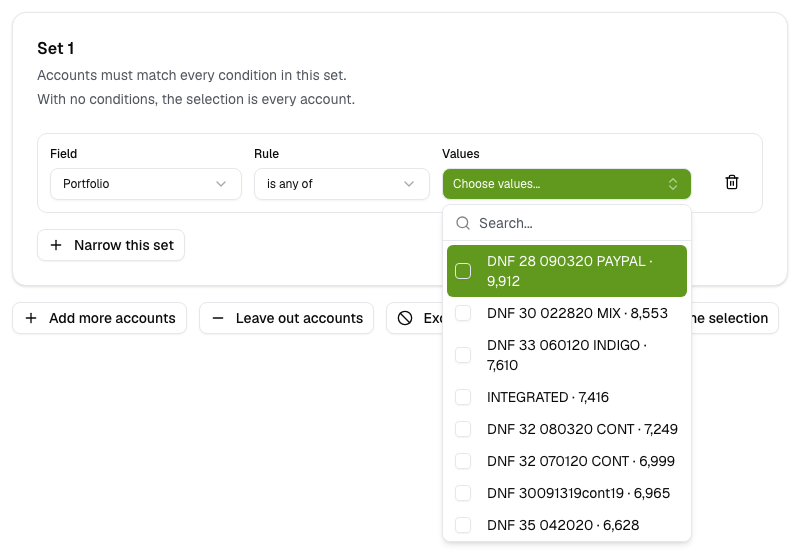
The picker shows up to 5,000 values. A blank value appears as (blank).
Narrow a set
Add conditions to make a set stricter. In this demo, one portfolio, four Southeast states, and a current balance of at least $500 narrow 199,852 accounts to 1,661.
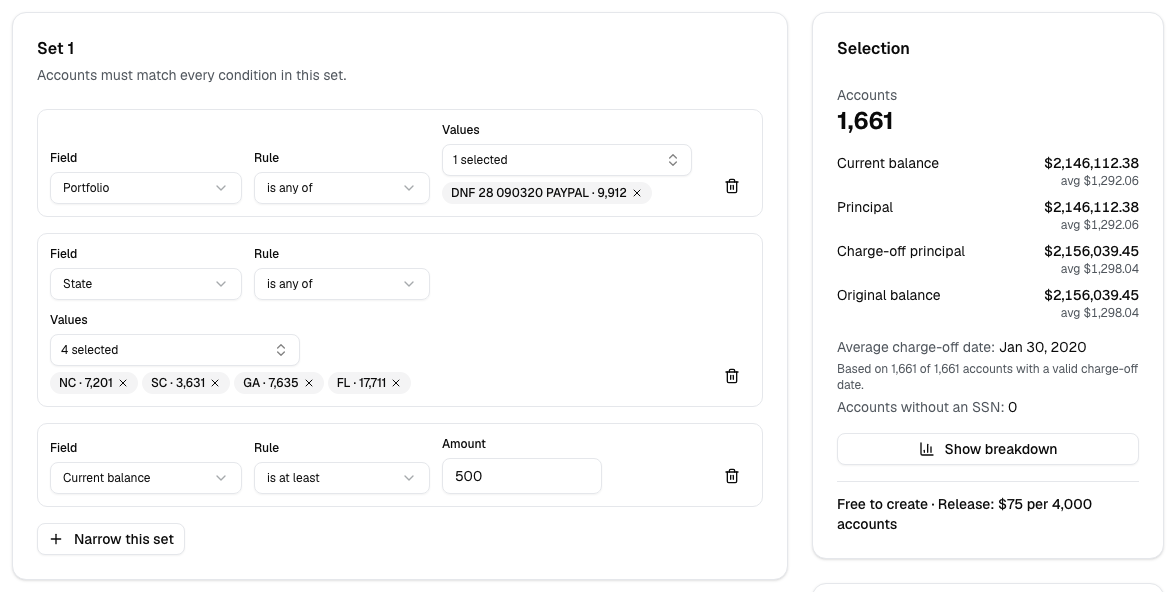
More condition types:
- Amounts: for a range, enter the smaller amount first. Use up to two decimal places.
- Dates: enter a real date after January 1, 1900. An account without a valid date does not match a date condition.
- Match text: find creditor or city names that contain or start with some text, for example
Bank. - Any column: find accounts that have a value, or no value, in any export column. For example, require an SSN or a phone number.
"Has a value" checks that data exists. It does not prove that a phone number works or that an SSN is correct.
Add a second group of accounts
Select Add more accounts to add another set with different requirements. An account can qualify through any set, and the app counts it only once.
For example, Set 1 takes one status and Set 2 takes one state. Each set shows how many accounts it Matches, how many are Already in earlier sets, and how many it Adds.
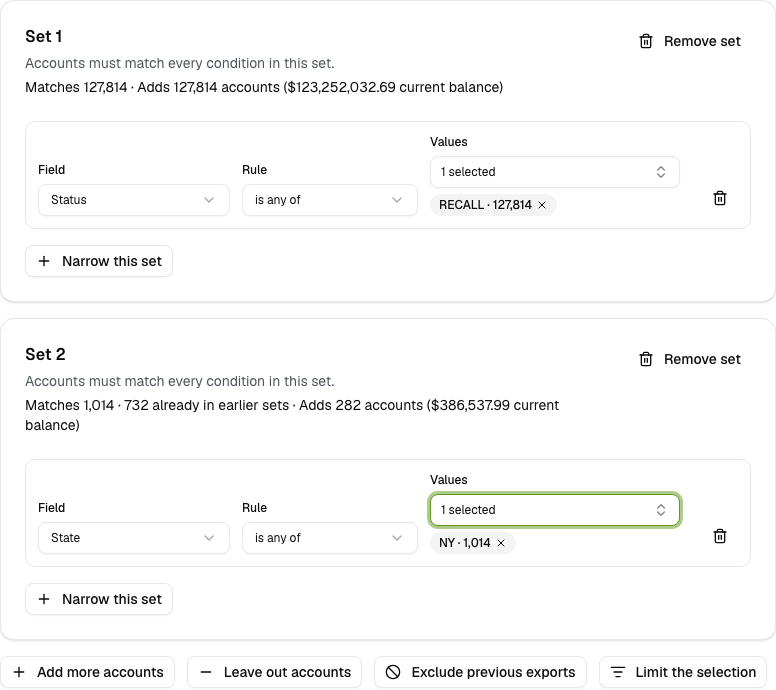
You can use up to 10 sets with up to 30 conditions each.
2. Refine the batch
Three more tools shape the final file. The app applies them in this order:
- SetsAccounts that match any set.
- Leave outRemove accounts that match a leave-out rule.
- Exclude exportsRemove accounts saved in earlier exports you choose.
- LimitKeep a number of accounts or a dollar target from what remains.
Leave out accounts
Select Leave out accounts to remove matching accounts from the whole selection. Use it for rules that apply everywhere, such as "never include this status". You do not have to repeat the rule in every set.
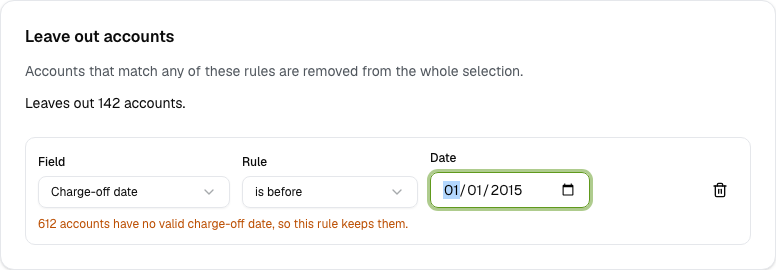
An account without a valid date does not match a date rule, so a date leave-out rule keeps it. Read the warning below the rule.
Exclude previous exports
Select Exclude previous exports to make sure a new batch does not repeat accounts from earlier offers. Choose up to 10 saved exports. The app removes every account ID saved in them.
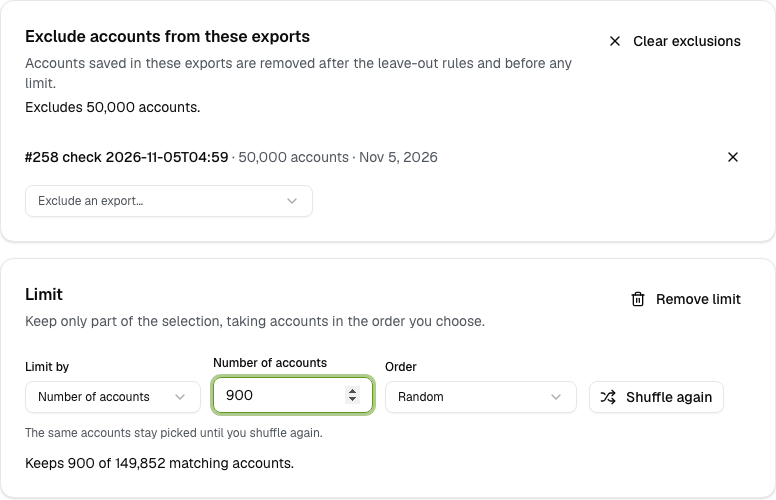
Exclusion applies only to the exports you choose. It does not track every earlier sale automatically.
Limit the selection
Select Limit the selection to keep only part of the accounts.
- Number of accounts: keep a fixed count, such as a 1,000-account sample.
- Dollar target: keep accounts until their total reaches an amount. Choose which dollar field to total.
Then choose the Order:
- Random: a shuffled batch. Select Shuffle again for a different random order. With unchanged data, rules, and limits, the same accounts stay picked. Changing any of those can change the batch without reshuffling.
- An amount field: Highest first or Lowest first.
- A date field: Newest first or Oldest first. Accounts without a valid date come last.
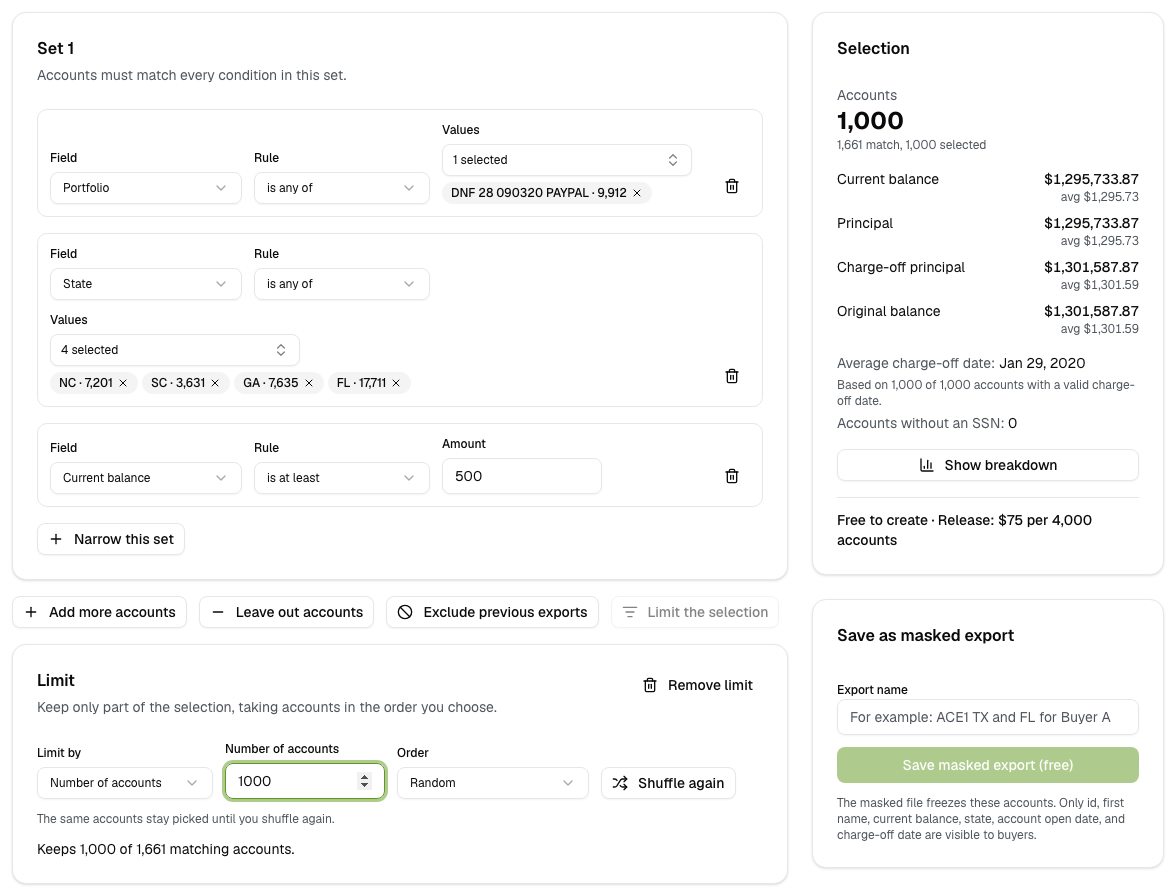
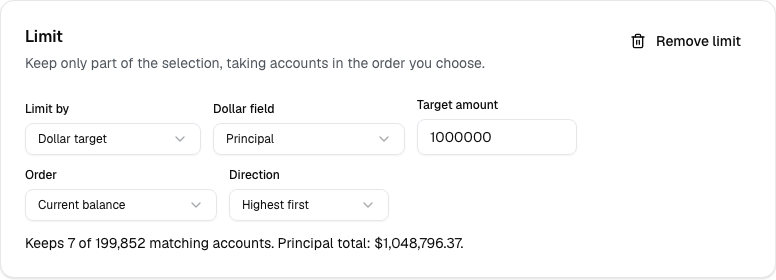
If fewer accounts qualify than the limit asks for, the file contains all of them. If the target cannot be reached, the app tells you and keeps every account.
3. Review what you are offering
Before you save, check that the batch fits the offer. The Selection card always shows:
- Accounts: the final count after exclusions and the limit.
- Totals and averages for current balance, principal, charge-off principal, and original balance.
- Average charge-off date, based on accounts with a valid date.
- Accounts without an SSN.
For more detail, select Show breakdown.
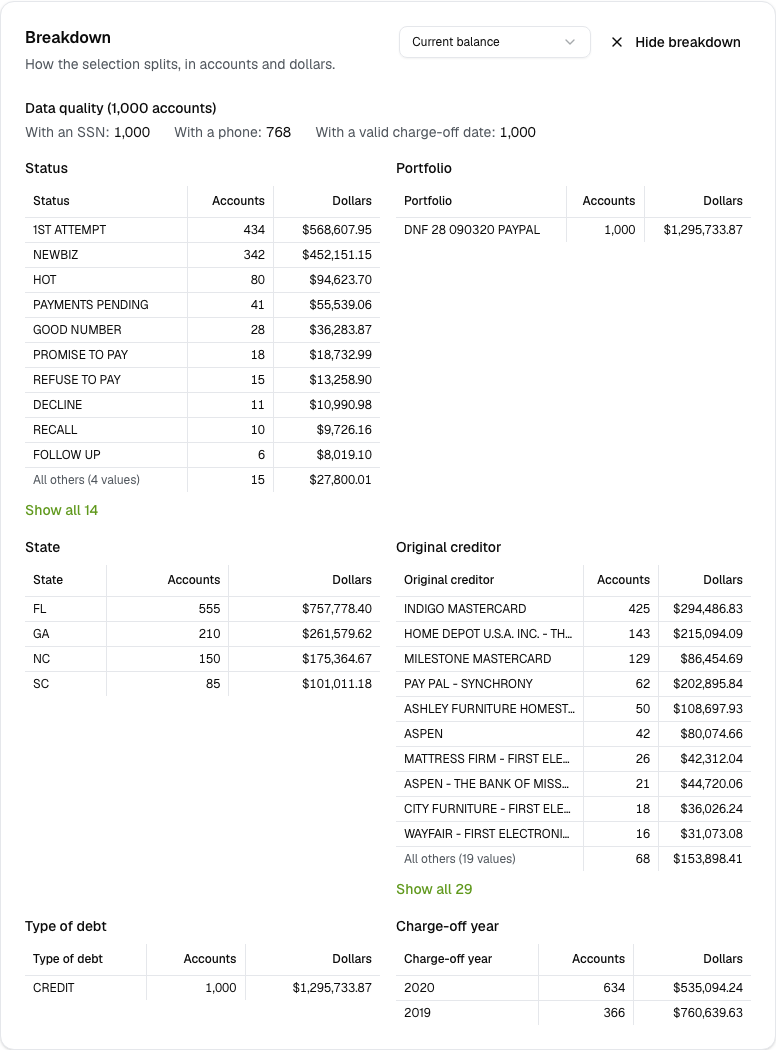
The breakdown shows:
- Data quality: how many accounts have an SSN, a phone number, and a valid charge-off date.
- Six tables: status, portfolio, state, original creditor, type of debt, and charge-off year.
- A dollar measure picker: switch the dollar column between the four balance fields.
- Show all: each table shows the top 10 values plus "All others". Expand it to see every value.
Use it to find surprises before a buyer does, such as one creditor holding most of the balance. If you change the selection while the panel is open, select Refresh to update it.
These numbers describe your data. They are not a valuation of the debt or a prediction of what you will collect.
4. Save a free masked export
- Enter an Export name you will recognize later, such as
Southeast sample for Buyer A. - Fix any condition marked in red.
- Select Save masked export (free).
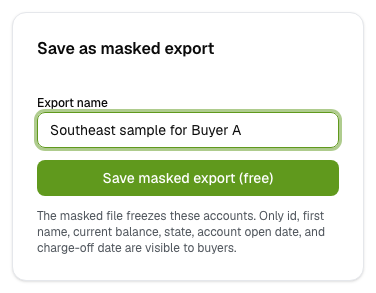
The export appears in the Masked exports list with its account count and date.

A saved export can contain from 1 to 500,000 accounts. Saving does not send anything to a buyer or change any account in Collections MAX.
What the buyer sees in a masked file
Masked and real files have the same 102 columns: 42 standard Collections MAX fields plus your 60 custom fields, with your custom labels. In a masked file, six columns keep their real values:
| Visible column | Why it helps the buyer |
|---|---|
id | Identifies each account, so the buyer can return their choices |
firstname | Helps the buyer match records |
currentbalance | Shows the amount owed |
state | Shows where the account is |
dateaccountopened | Shows the account's age |
datechargedoff | Shows when it charged off |
Every other cell that has data shows MASKED. Empty cells stay empty. That lets the buyer see which accounts have phone numbers, emails, SSNs, or employer details, without seeing the values.
A masked file is not anonymous. A first name, state, balance, and dates can still be sensitive together. Share it under your company's data rules.
5. Share the file and check for changes
Select Download masked file, then choose Excel (.xlsx) to view it or CSV (.csv) for an import system. Send it through your company's approved secure sharing method. Ask them to keep the id column and send back the IDs they want.
The masked file is a snapshot. It keeps the values from the moment you saved it. Before you share or release, select Check changes to compare it with your current data.
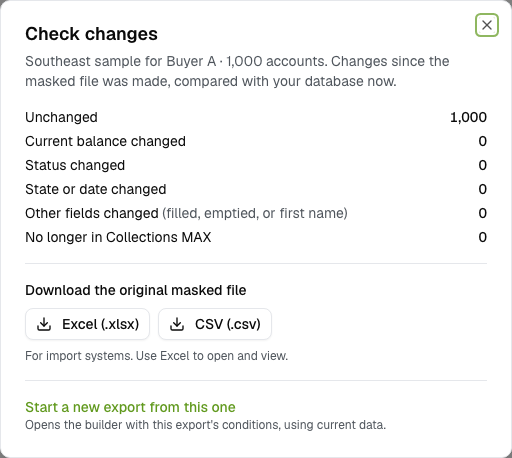
The check reports accounts whose current balance, status, state, dates, or other fields changed, and accounts no longer in Collections MAX. When changes exist, select Download list of changed ids for a CSV of the affected accounts.
The check cannot see every change. Two different phone numbers both appear as MASKED, so a change from one to the other is not detected. "Unchanged" means no change the check can detect.
Build a fresh version
Select Start a new export from this one to load the same sets, rules, exclusions, and limit into the builder. The result uses current data, so it can differ from the original. Review it and save it under a new name. The earlier export does not change.
6. Release the accounts the buyer chose
When the buyer is ready, select Release real file on the saved export.
- Choose All accounts (the option shows the export's count), or Only the accounts the buyer picked.
- Upload the buyer's CSV or Excel file with an
idcolumn, or paste the IDs. - Select Check accounts.
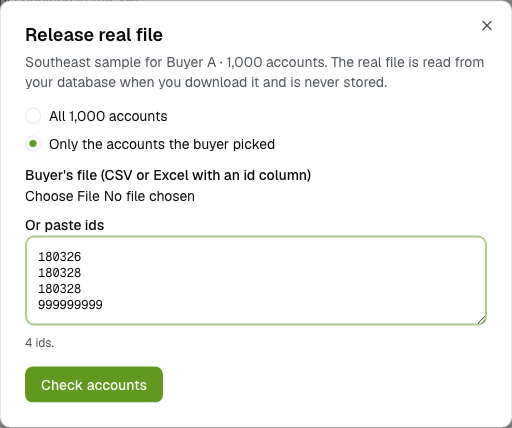
For Excel, put the IDs on the first worksheet. Pasted IDs can be on separate lines or separated by commas, spaces, or semicolons. The file is read in your browser; only the IDs are sent for checking.
The app then shows a preview before you pay:
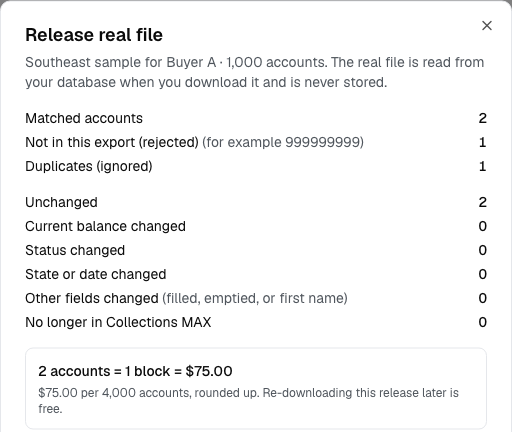
- Matched accounts: IDs in this export. These are the accounts you pay for.
- Not in this export (rejected): IDs that were never in this export.
- Duplicates (ignored): repeated IDs count once.
- Already released: a notice if some accounts were released before.
- The price, in 4,000-account blocks.
Accounts no longer in Collections MAX are left out of the file and the price. If something looks wrong, select Back and fix the IDs.
Pay and download
Pay by card in the portal. After the portal confirms payment, download the real file as Excel (.xlsx) or CSV (.csv).
If the portal cannot confirm payment yet, do not pay again. Wait a minute, then select Check payment again. Contact support if it still does not confirm.
The real file reads current data from Collections MAX each time you download it. Accounts deleted since the release are skipped. Export Manager does not keep a copy of the real file, so save the file you deliver under your own records process.
Download again for free
Each release appears under its export. Select Download real file on that row to download it again at no charge.
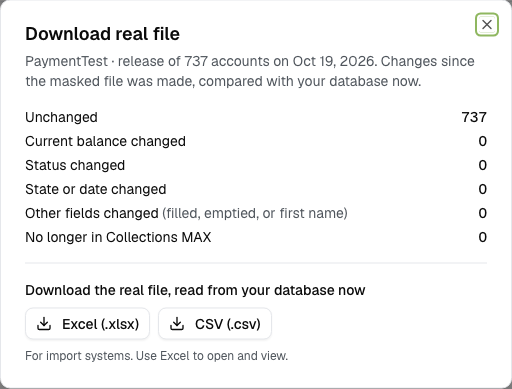
Selecting Release real file again creates a new, separately charged release. Use Download real file when you only need another copy.
Pricing
| What you do | Price |
|---|---|
| Build selections and review breakdowns | Free |
| Save and download masked exports | Free |
| Release real data | $75 per 4,000 accounts, rounded up |
| Download an existing release again | Free |
Each release is charged in blocks of 4,000 accounts. A started block is charged in full.
| Accounts in one release | Blocks | Release charge |
|---|---|---|
| 1 to 4,000 | 1 | $75 |
| 4,001 to 8,000 | 2 | $150 |
| 8,001 to 12,000 | 3 | $225 |
For example, releasing 250 accounts costs $75, and releasing 4,001 accounts costs $150. Blocks are counted per release, not added up across releases.
This is the charge for using Export Manager. It is not the price your buyer pays you for the accounts. You arrange the sale and the buyer's payment separately.
Requirements
- Your company uses Collections MAX.
- DC IT connects the portal to your Collections MAX data.
- You have a portal account with company administrator access.
- Export Manager is turned on for your company.
You do not need DC IT hosting or a DC IT reporting subscription. Portal access is invite-only, so start by contacting support. Support confirms the connection and sets up your access.
Export Manager prepares files. It does not find buyers, collect the sale price, or transfer account ownership.
Frequently asked questions
Does the buyer need a portal account?
No. The buyer works with the spreadsheet you send and returns the IDs they want. You do the release and payment in the portal.
Does masking hide everything?
No. The six columns in What the buyer sees keep their real values. Other filled cells show MASKED. Review the file before you share it.
What does Export Manager store?
It stores the masked file, the export settings, account IDs and statuses, and release and payment records. The masked file includes the real values of the six visible columns. Real files are read from Collections MAX at download time and are not stored.
Does a saved masked file stay current?
No. It keeps the values from when you saved it. Check changes compares it with current data but does not update it. Use Start a new export from this one for a current version.
Does it stop me from offering the same accounts twice?
Only if you ask it to. Exclude previous exports removes accounts in the exports you choose. The release preview also tells you when accounts were released before.
Why can't I save?
Enter an export name, fix any condition marked in red, and wait for the totals to finish updating. The selection must have between 1 and 500,000 accounts. The message under the save button tells you what to fix.
Why did a date rule keep some accounts?
Accounts without a valid date do not match date rules. In a leave-out rule, that means they stay in. Read the warning under the rule.
Which download format should I use?
Use Excel (.xlsx) to open and review the file. Use CSV (.csv) when another system imports it. Both formats are available for masked and real files.
Can I edit or delete a saved export?
Not from the screen. Use Start a new export from this one to make a changed version. Contact support about removing files.
Why does the app say another export is being built?
Another heavy task, such as a save, check, or download, is running for your company. A colleague may have started it. Wait for it to finish, then try again.
Why did a release date look different from my local date?
Dates in the export and release lists use UTC. Near midnight, the date can differ from your time zone.
What happens if a release is refunded?
The release shows refunded and its download button is removed. Contact support with billing questions.
Get access
Tell support that you use Collections MAX and want Export Manager. Do not send account files, database passwords, or card details in the first email.
New to the portal? Access is invite-only. Email [email protected] to request Export Manager access.
Email supportAlready have access? Open Export Manager in the portal.
Open the portalIf signing in takes you somewhere else, select your company, then choose Tools → Export Manager.